
How to Use the City Planner for Elvenar
The City Planner is a free editor for building and testing Elvenar city layouts in your browser. You can try ideas you could never test in the game, because moving buildings in the planner costs nothing. You can move your whole city around, check that everything is connected and see how your production changes before you move a single building in your real city. The planner follows the same rules as the game: building sizes, street connections, expansions, set bonuses and the special mechanics of every chapter.
1. Create or import a layout
Click the + button in the Layout Manager in the top-left corner. The dialog lets you start in one of three ways:
- Import from the game: search any player by nickname across all servers and load their current city from Elvenar Stats.
- Import via the extension: the Elvenar Tools Extension sends your live city straight from the game and also fills in variables such as your exact squad size.
- Create a blank city: start from an empty city of the selected type and build it from scratch.
2. Place and edit buildings
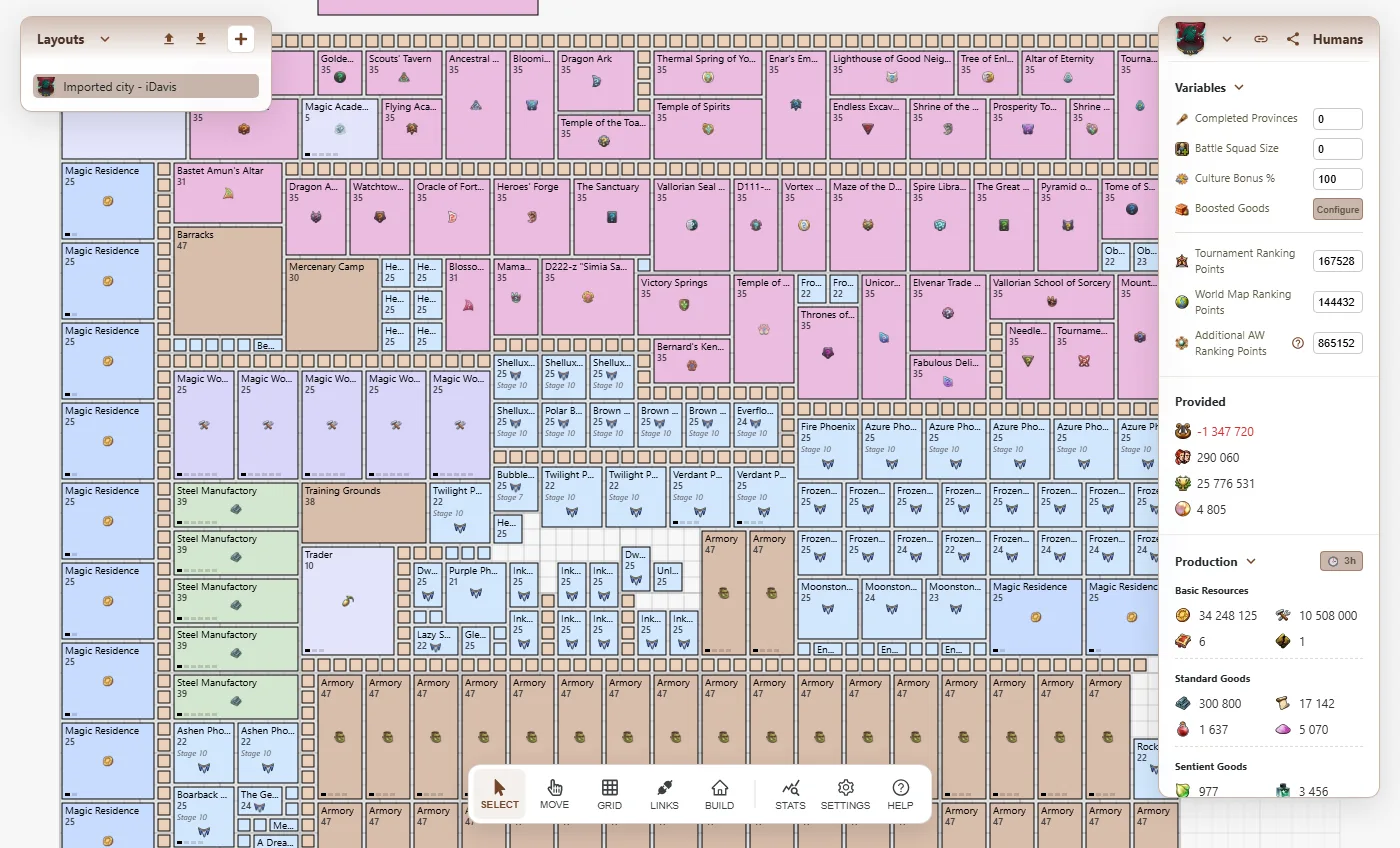
Click Build in the bottom toolbar and pick a building from the Building Menu. The building sticks to your cursor, so you can place it several times in a row. To stop, click Cancel in the same place, or try to place the building on an invalid spot. Drag buildings to move them. Selecting a building opens the Selected section of the City Stats panel. It shows the building's parameters and lets you change its level or evolution stage or remove it. When several buildings are selected, the changes apply to all of them, which makes upgrading every manufactory of one type a single action.
3. Read your City Stats
The City Stats panel on the right updates in real time. First fill in the Variables section with the values from your game so the numbers are accurate. Provided shows Culture, Population, Prosperity and Ranking Points. Production shows what your city makes. As in the game, buildings outside the city or on locked expansions do not count. Unconnected buildings still provide Culture and Population, but they do not produce anything. For a deeper look, click Stats in the bottom toolbar. The statistics dialog lists every building with its quantity, shows Culture and Population per square and breaks down how many tiles each building type uses.
4. Check connections and set bonuses
Buildings must be connected to be active, and the planner supports every connection type used in the game, so you can also prepare for the mechanics of upcoming chapters. Click Links in the bottom toolbar to check connectivity. Unconnected buildings are grayed out, and the button turns green with a check mark when everything is connected or red when something is missing. Set buildings get their bonuses when you place them next to each other. Select one to see in City Stats which connections are active and how much extra they produce.
5. Manage and share your layouts
You can keep as many layouts as you like. All layouts are stored in your browser and saved automatically after every change. Double-click a layout to rename it, drag layouts to reorder them, use Duplicate to try out a variant without touching the original, or remove a layout with Delete. To open a layout on another device or send it to a fellowship member, use the share buttons at the top of the City Stats panel. They create a link you can copy. You can also export your layouts to a file with the buttons next to + and import them later.
Keyboard shortcuts
- Delete / Backspace: remove the selected buildings
- Ctrl + C and Ctrl + V: copy and paste buildings
- Ctrl + Z: undo the last action
- Ctrl + A: press it repeatedly to widen the selection. It first selects every building of the same type and level, then every building of the same type, then the whole category and finally the whole city. This is the fastest way to select, for example, all of your roads or all manufactories of one type and level. The City Stats panel shows how many buildings are currently selected.
- Ctrl + mouse wheel: zoom the map in and out
Questions and bug reports
The City Planner was created by iDavis and is part of the iDavis-Elvenar family of community resources. If you have a question, find a bug or miss a feature, get in touch on the Discord thread.
Frequently Asked Questions
Is the City Planner free to use?
Yes. The City Planner is completely free and does not require an account. Your layouts are stored in your browser and are saved automatically after every change.
Will I lose my layouts if I close the browser?
No. Layouts are kept in your browser's local storage, so they are still there when you come back. They are only removed if you clear your browser data or use a private window. If you want a backup or need to open a layout on another device, use the Share button or export the layout to a file.
Can I import my real city from the game?
Yes. Install the Elvenar Tools Extension, open Elvenar in your browser and choose City Planner in the extension menu. Your current city, including streets, buildings, unlocked expansions and variables such as your squad size, is sent directly to the planner.
Why does a building not produce anything in City Stats?
Most buildings only produce when they are connected to your Main Hall, and nothing placed outside your city or on a locked expansion counts toward your totals. Use the Links mode to see which buildings are grayed out and need a road connection.
How do I zoom in and out?
Hold Ctrl and scroll the mouse wheel over the map, or use the Zoom In and Zoom Out buttons. A default zoom level can be set in Settings.
Does the City Planner support settlements and new chapters?
Yes. All chapters and their mechanics are supported, including settlement layouts of guest races, so you can prepare a layout before the content reaches your city.
I removed buildings by mistake. Can I get them back?
Press Ctrl + Z to undo your last actions.
How is the icon of a layout chosen?
The icon shown next to a layout in the Layout Manager is taken from the building of the highest chapter in that layout.